


RANZCO has launched Vision 2030 and beyond, which aims to enhance equitable service provision across Australia and New Zealand, and develop and maintain a sustainable ophthalmology workforce, with the goal of working towards eliminating avoidable blindness.


Latest Eye2Eye
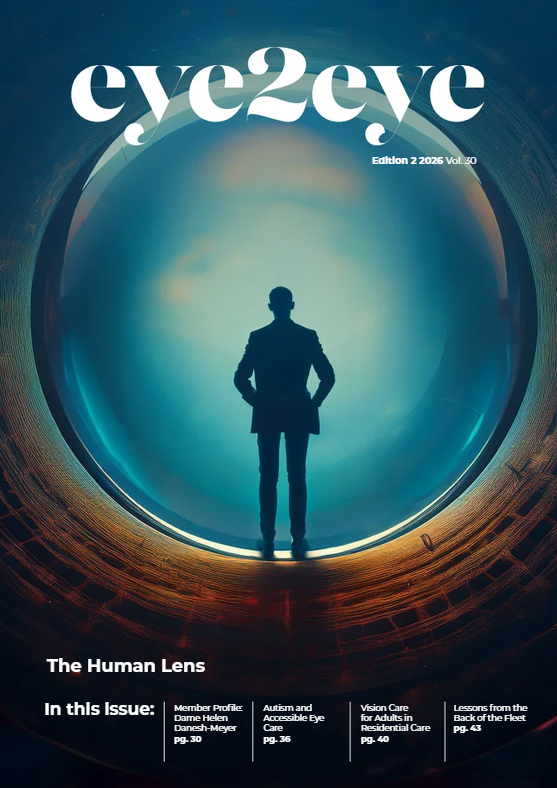
|
Upcoming Events | |
|
October 17 , 2026
2026 RCH Paediatric Ophthalmology Seminar – Virtual and Live patient events
The Royal Children's Hospital Melbourne is holding their annual Paediatric [...]
|
|
|
| |
|
October 24 , 2026
2026 RCH Paediatric Ophthalmology Seminar – Virtual and Live patient events
The Royal Children's Hospital Melbourne is holding their annual Paediatric [...]
|
|
|
| |
|
November 02 , 2026
2026 International Play Association Conference
The International Play Association (IPA) World Conference 2026 is being [...]
|
|
|
| |
|
November 04 , 2026
Women In Vision Aotearoa Conference
The Women In Vision Aotearoa Conference will take place 4-6 [...]
|
|
|
| |
Last updated: August 10, 2026